Assets
Assets is the panel next to Style in the project tools. Press Add files to upload images, video and TTF or OTF fonts. They appear in the list, filtered by type, ready to use on your screens.
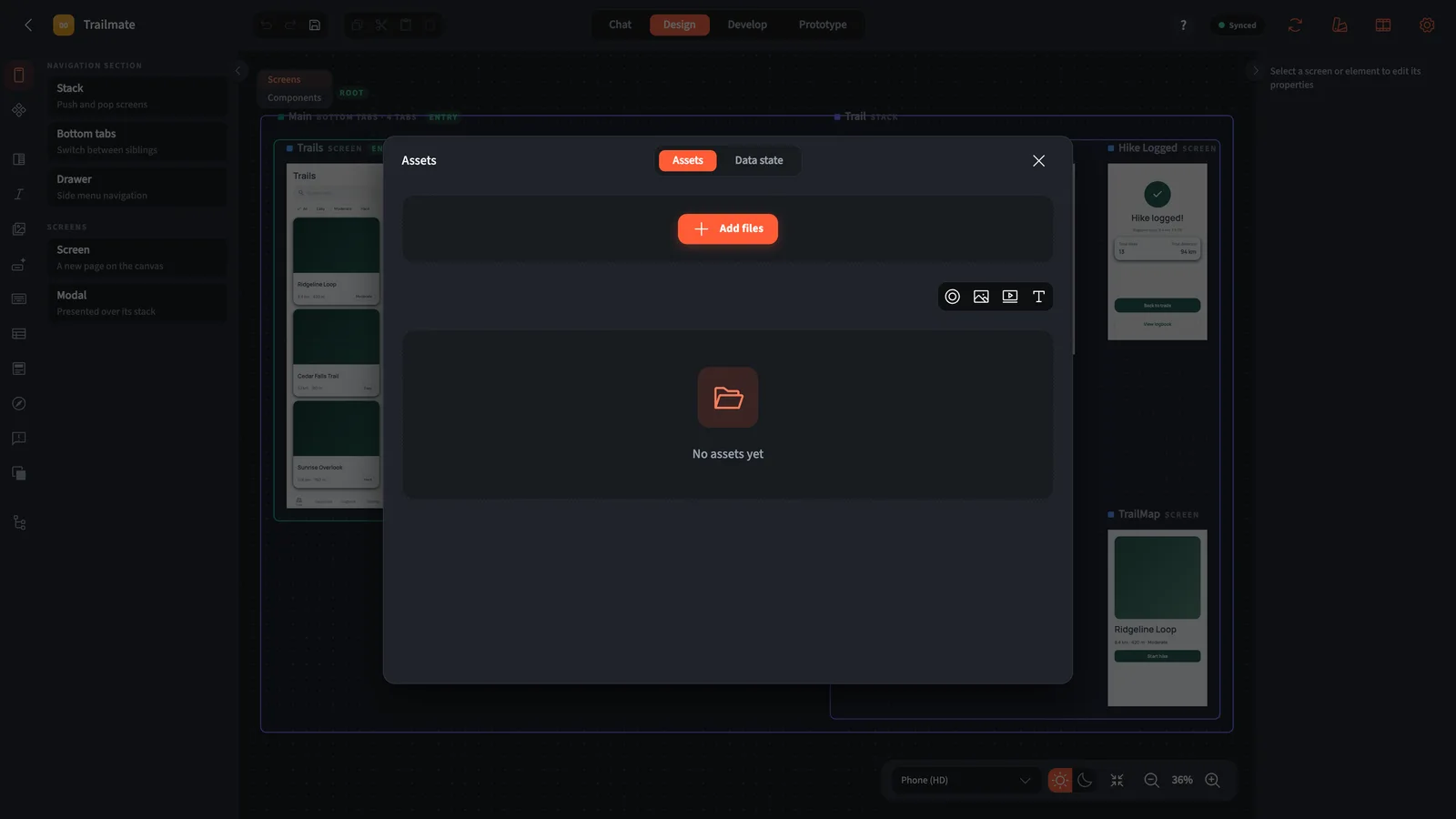
Asset types
| Type | Use |
|---|---|
| image | Photos, illustrations, logos (PNG, JPG, WebP, SVG) |
| video | Video files for the Video element |
| font | TTF or OTF font files, available in Typography after upload |
After upload, each asset is identified by a ref of the form ref(type:uuid:name.ext). The design stores the ref, not the file, so replacing an asset in Creator updates every element that uses it.
Using assets
Select an element that takes an asset, such as an Image's source or an Icon, and pick the asset in the inspector. Fonts you upload appear as font families in Style → Typography.
The assistant can also add stock photos for you: ask for a placeholder photo of a topic and it is fetched (from Pixabay), saved as a project asset and placed on the screen.
Assets in your app
The CLI downloads assets into src/mapples/assets/ and writes assetMap.ts, which maps every ref to a require(...) of the local file, together with its type, name and MIME type. MapplesApp reads the map, registers the fonts and resolves refs at runtime. Nothing is fetched from the network when the app runs. See Project layout.
Assets count against the workspace plan's storage limit, shown under Billing & usage.